workflow
daily notes
Daily notes give quick open one reliable command for dated markdown files. Pick a folder and a naming structure once; after that, Noute opens a calendar so you can jump to today, tomorrow, or any date in your local time.
Open quick open and run open daily note..., or open Settings and use Context folders.
Choose the folder where your daily notes should live.
Pick a structure, or use the detected structure if Noute finds existing daily notes.
Run open daily note... again to choose a date from the calendar.
If that date’s file does not exist, Noute creates it and opens it immediately.
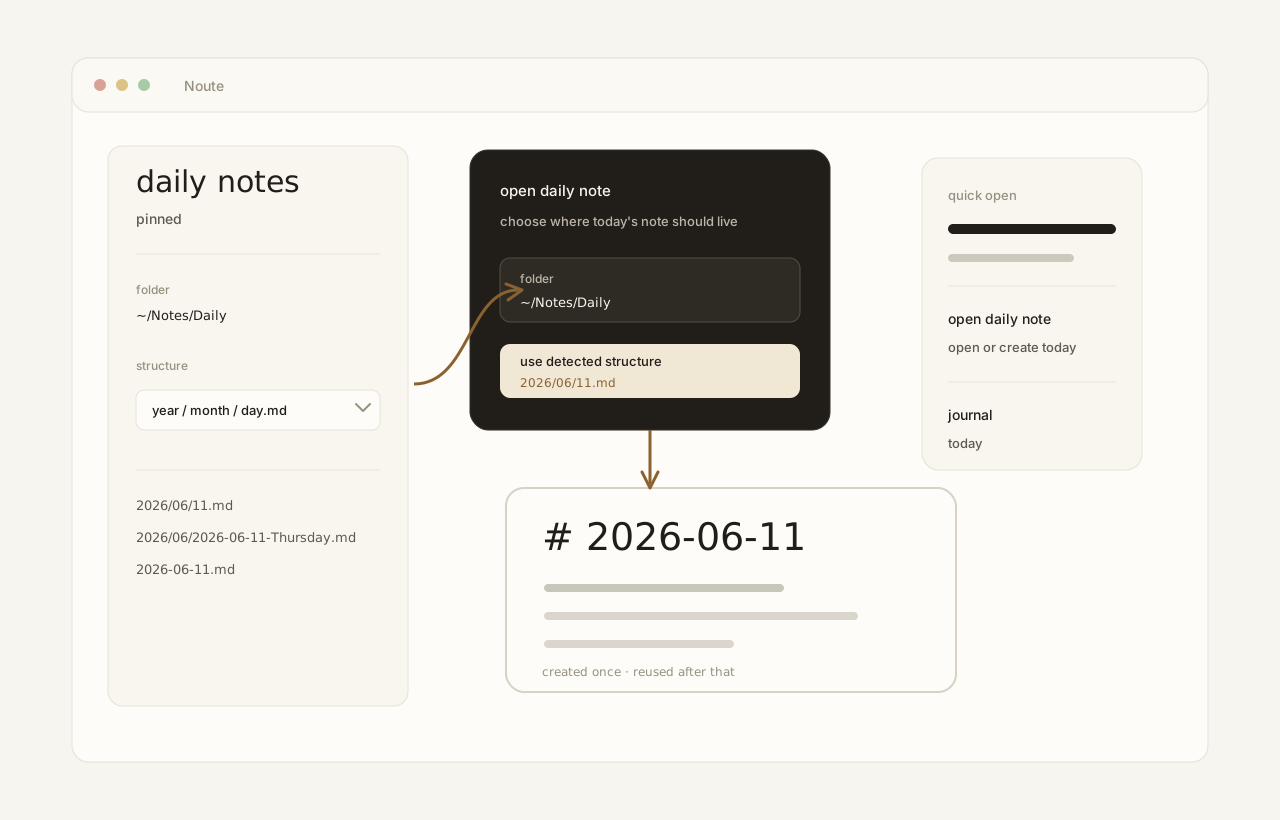
Noute supports three daily-note structures:
- year / month / day.md
- 2026/06/11.md
- year / month / dated day.md
- 2026/06/2026-06-11-Thursday.md
- flat daily files
- 2026-06-11.md
When you choose a folder, Noute scans markdown files in that folder and looks for one of the supported structures. If one structure is clearly strongest, quick open offers it as the detected structure.
If the folder is empty or ambiguous, choose the structure you want. The choice is saved with the folder and can be changed later from Context folders settings.
The quick open command is named open daily note.... It opens a calendar with today selected. Click a day, use the month arrows, or press Enter to open the selected date.
Opening a date never overwrites an existing note. If the target file already exists, Noute opens it as-is. If it does not exist, Noute creates parent folders if needed, writes a single heading like # 2026-06-11, then opens the file.
You can also type dates directly into quick open. Queries like today, tomorrow, yesterday, next friday, 2026-06-14, june 14 resolve to the matching daily note before regular file results.
The daily-note calendar is built for short jumps and keyboard navigation. The footer previews the exact relative path Noute will open for the selected date, using your configured structure.
- arrow keys
- move by day or week
- previous and next buttons
- move by month
- PageUp / PageDown
- move by month from the keyboard
- Shift + PageUp / PageDown
- move by year
- t
- return to today
- Enter
- open the selected date
Press Escape or use back to return to normal quick open search without choosing a date.
Daily notes live in Settings under Context folders. From there you can choose a different folder, clear the folder, or change the structure.
Choosing a daily-notes folder also pins that folder for quick open, so its notes stay easy to find from the keyboard.