appearance
customise themes
Noute themes are plain CSS files with a small settings UI on top. Start with the visual controls, then switch to source code when you want reusable folders, assets, or exact CSS edits.
Open Noute settings and choose Appearance.
Pick Light, Dark, or System mode.
Keep Theme source set to App settings for the visual controls.
Adjust the light and dark base themes, accent, background, foreground, and contrast.
Use Typography to pick the preset, text font, code font, and editor scale.
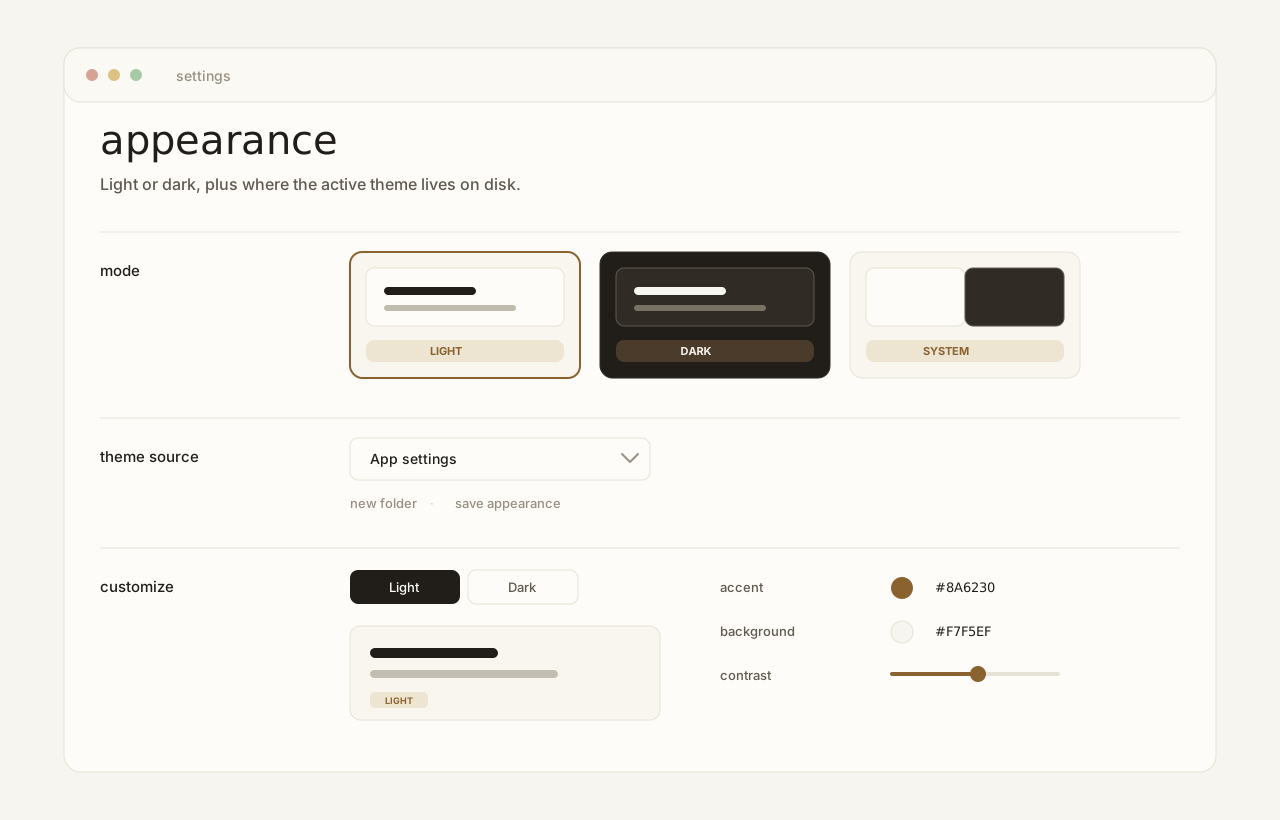
Theme source decides which folder supplies the active CSS. App settings is Noute's generated profile; it is the right place for ordinary colour and typography changes.
Use new folder for a blank custom profile, or save appearance to copy the current app settings into a reusable theme folder. Custom folders live under ~/.noute/themes/<profile>/.
Switch Editing mode to Source Code to edit the active files directly: theme-colors.css and theme-typography.css. Save writes both files to disk. Revert reloads from disk.
The colour file defines light values on :root and dark values on html.dark. The typography file defines editor and preview font stacks, heading scale, line height, and reading width.
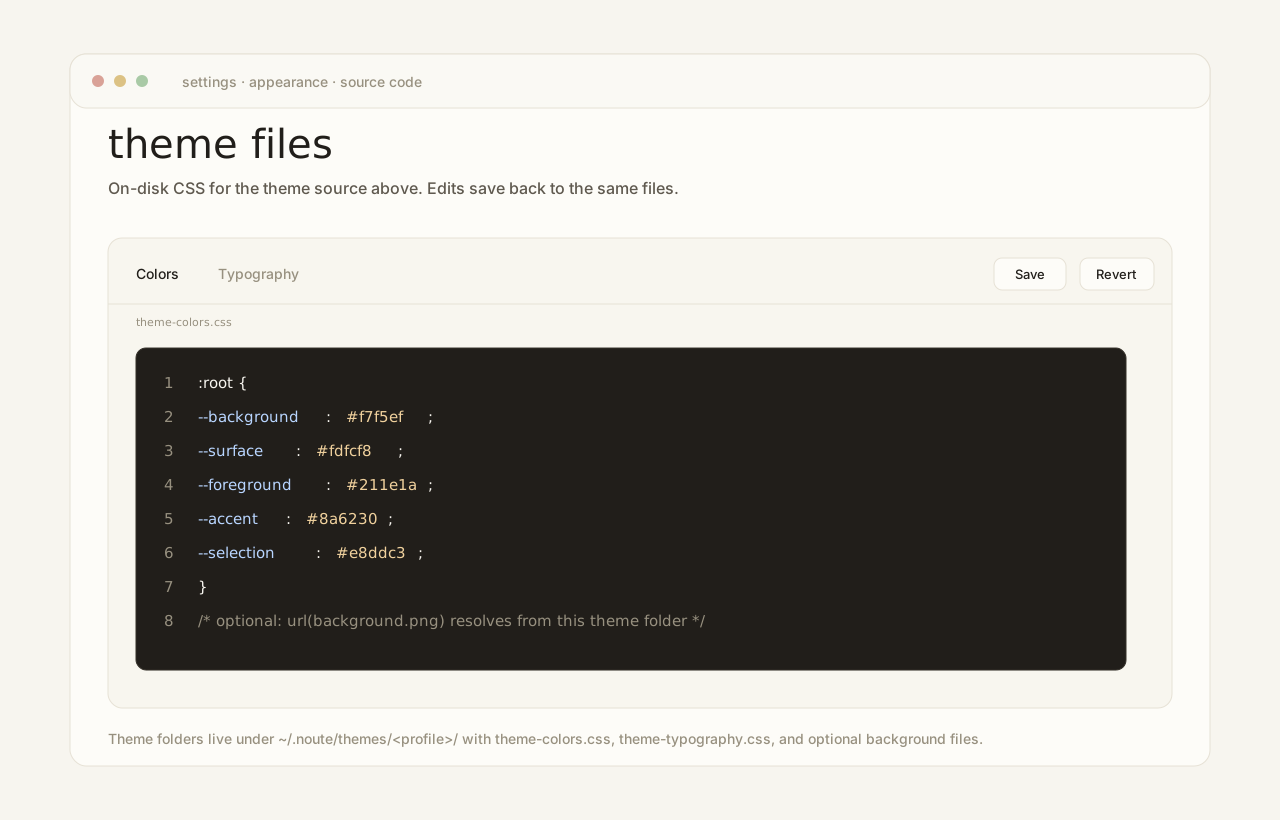
These are the variables most theme edits touch first:
- --background
- --surface
- --surface-float
- --foreground
- --muted
- --border
- --accent
- --selection
- --link-existing
- --link-missing
- --font-text-theme
- --font-heading-theme
- --font-monospace-theme
- --font-text-size
- --file-line-width
A theme folder can include one optional backdrop file beside the CSS. Noute checks these filenames in order: background.webm, background.mp4, background.png, then background.jpg.
Relative url(...) references inside theme CSS resolve from the active theme folder. Keep assets in that folder so a theme pack remains portable.