workspace
canvas
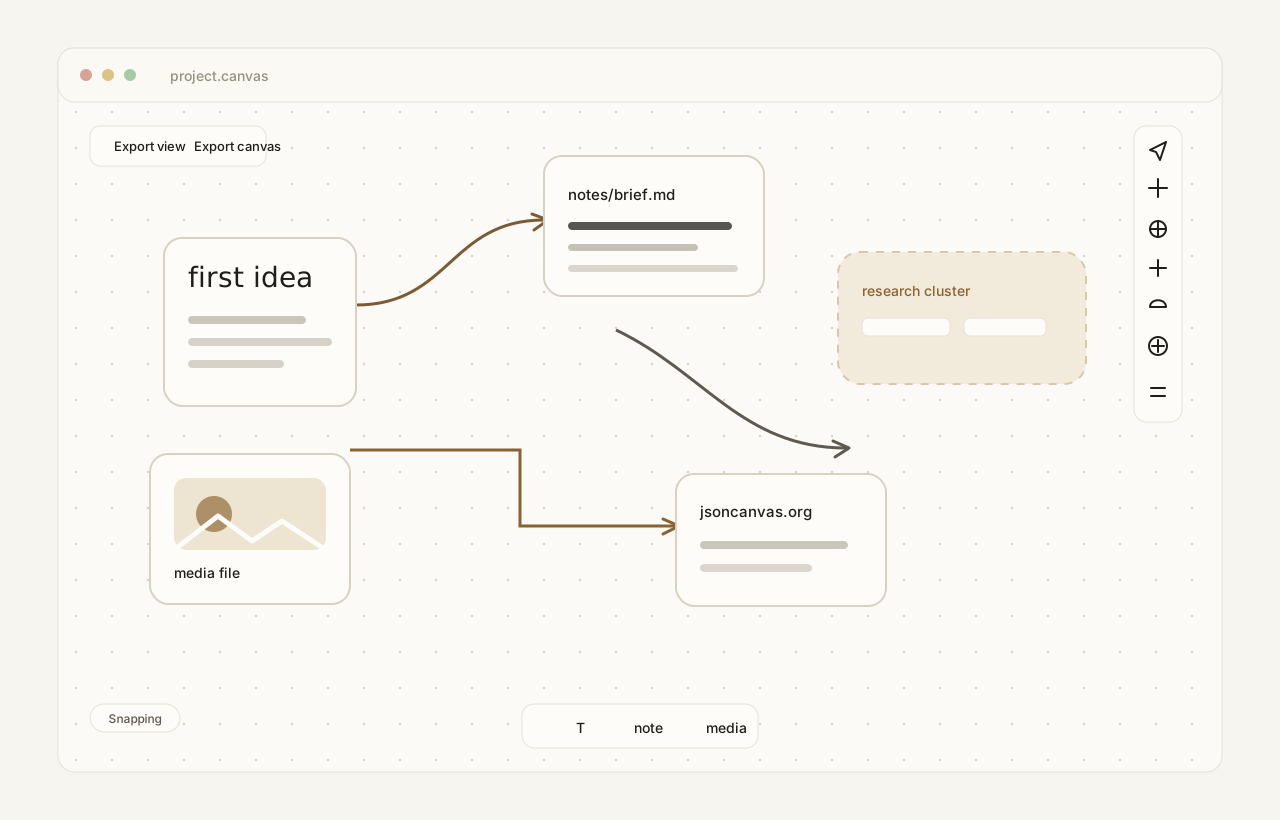
Noute opens JSON Canvas files for loose thinking: cards, notes, media, groups, and connections saved as plain .canvas JSON on disk.
Open or create a .canvas file from Noute.
Double-click empty space, press T, or use the bottom toolbar to add a text card.
Add notes and media from the bottom toolbar, the right-click menu, keyboard shortcuts, or by dropping files from the sidebar.
Drag from a card edge to connect cards. Double-click an edge label to edit it.
Select several cards to duplicate, group, align, tidy, colour, or delete them together.
text cards
Plain markdown text for ideas, labels, sketches, and working notes.
file cards
References to local notes, images, audio, video, other canvas files, Excalidraw files, PDFs, EPUBs, and other files.
link cards
Web page cards with the URL stored directly in the canvas.
groups
Resizable containers for clustering cards without changing the JSON Canvas format.
Use the pointer tool to select and drag. Use the hand tool, the spacebar, or scroll gestures to pan. The right-side controls handle zoom, fit, undo, redo, search, snapping, minimap visibility, and read-only mode.
The bottom toolbar adds text, note, and media cards. The top-left export actions save either the current viewport or the full canvas as a PNG.
- T
- add text at the pointer
- N
- choose a note
- M
- choose a media file
- L
- add a web link
- G
- group the selection
- ⌘F
- search the canvas
- ⌘D
- duplicate selected cards
- delete
- remove selected cards or edges
Canvas file cards store paths relative to the open folder when possible, or relative to the canvas file when needed. That keeps a board portable inside a folder of notes and assets.
Noute previews markdown, images, audio, video, nested canvas boards, Excalidraw drawings, PDFs, EPUBs, and plain file references. Clicking a file card opens the target in Noute when it can, or hands it to the system when it should stay external.